
How to transfer my data from my old device to the MC03?Updated 4 months ago
You can transfer your data from your previous device using the Switch to Punkt. app.
This step is optional, but recommended if you want to keep your contacts, photos and essential data.
What you can transfer
- Contacts
- Photos and basic files
- AphyOS-compatible apps (e.g. Proton, Threema)
Note: Third-party apps from the Google Play Store cannot be transferred and will need to be installed again manually.
Step-by-step instruction
1. Download the app on your old device
On your previous device, open your browser and go to:
https://assets.aphy.app/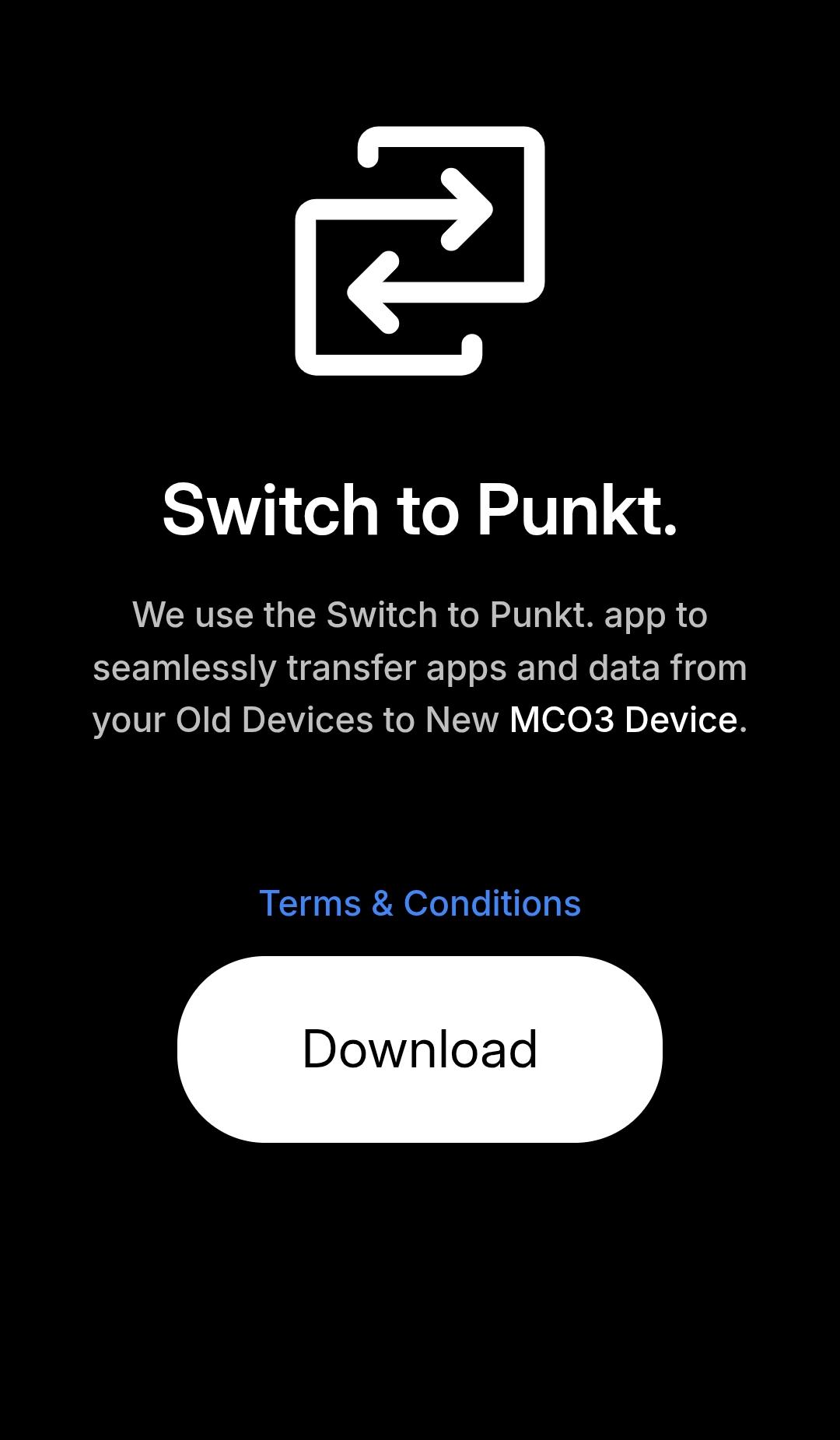
Download the Switch to Punkt. app.
2. Install and grant permissions
- Install the app once downloaded
- Open it and allow all requested permissions
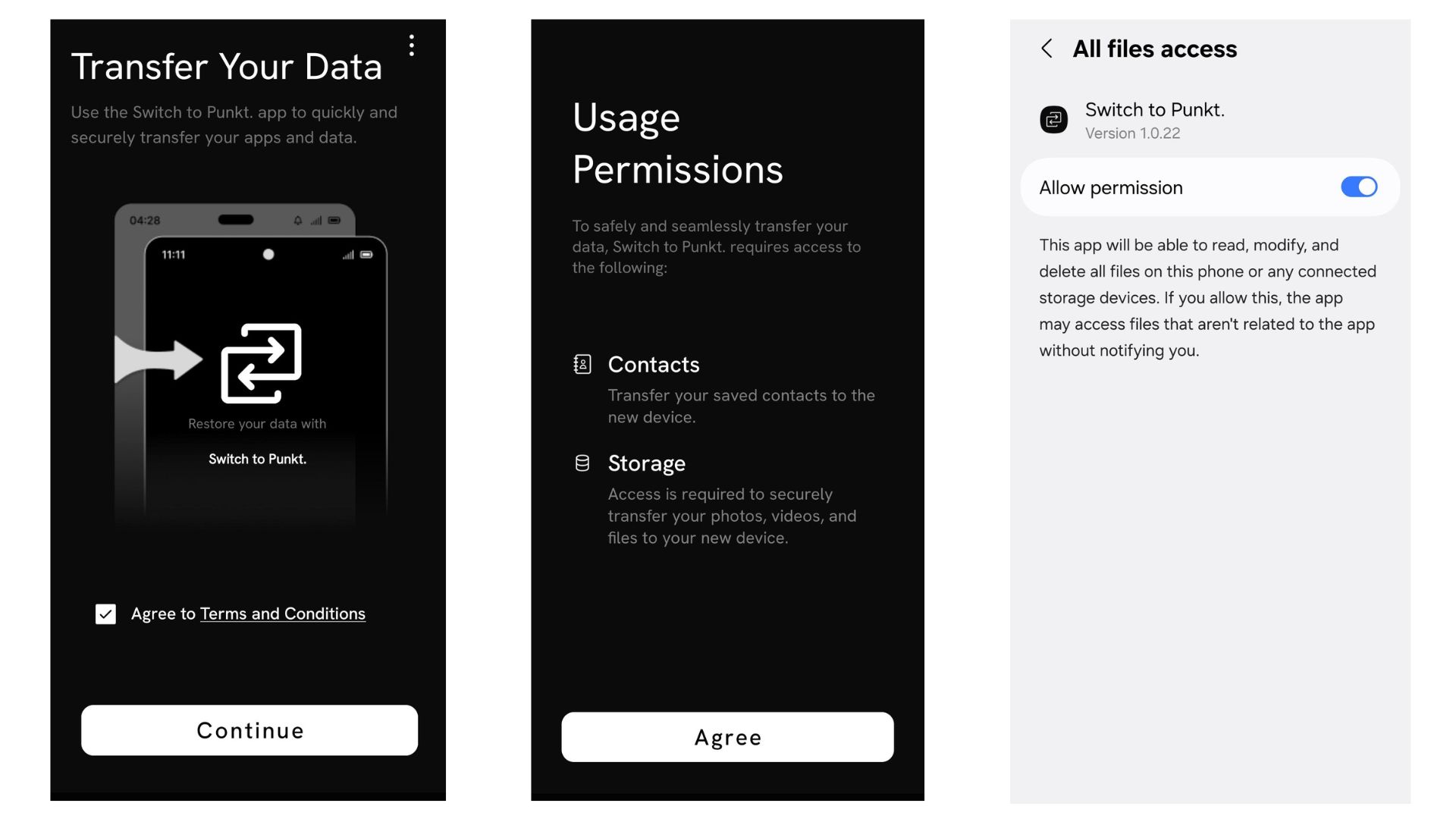
These permissions are necessary to access and transfer your data.
The app is secure and designed specifically for this process.
If required, you may need to manually enable permissions in your device settings.
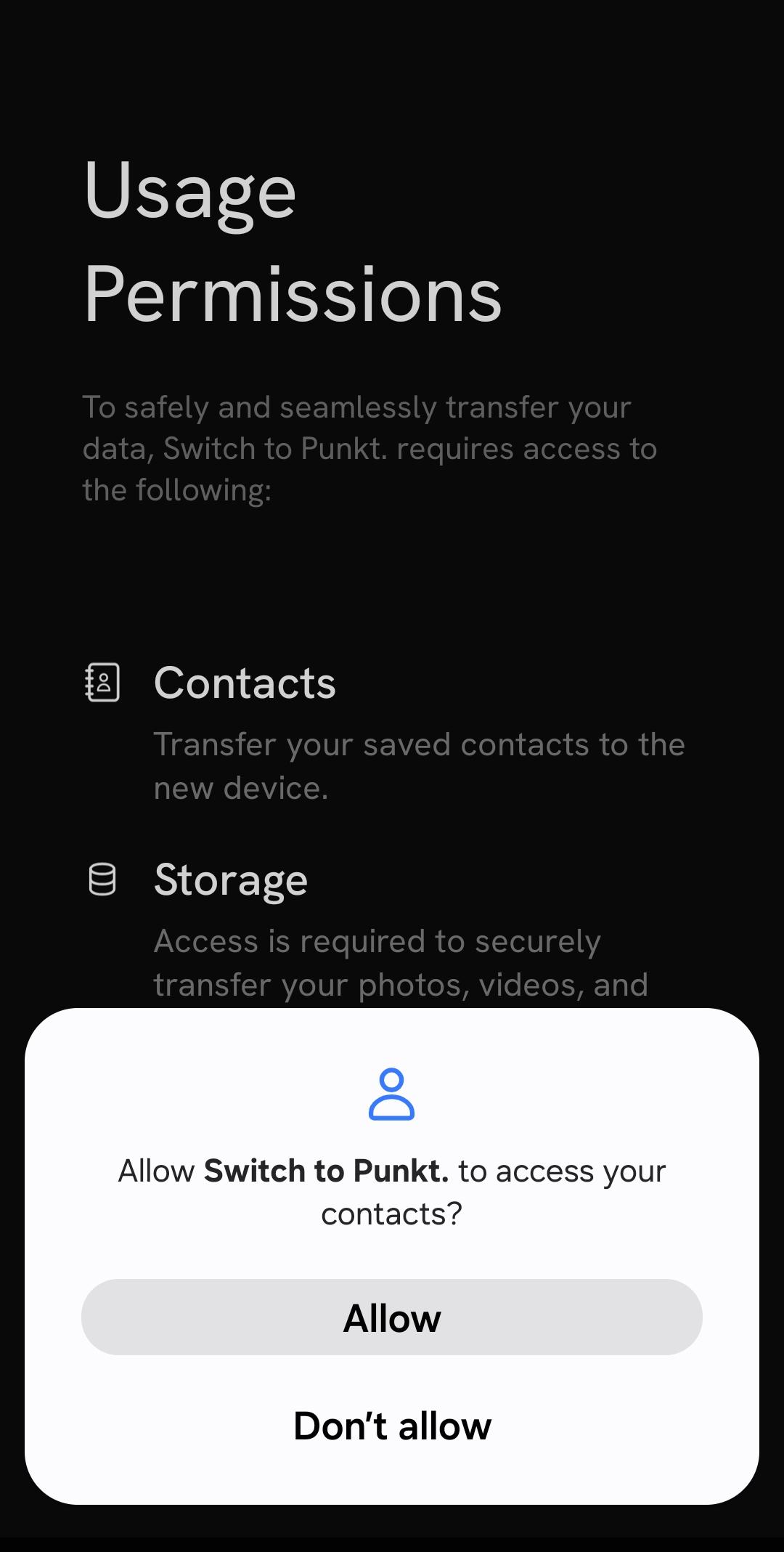
You will also be asked to provide permission to access to your contacts or media files in order for the app to transfer them in your new device.
3. Connect both devices
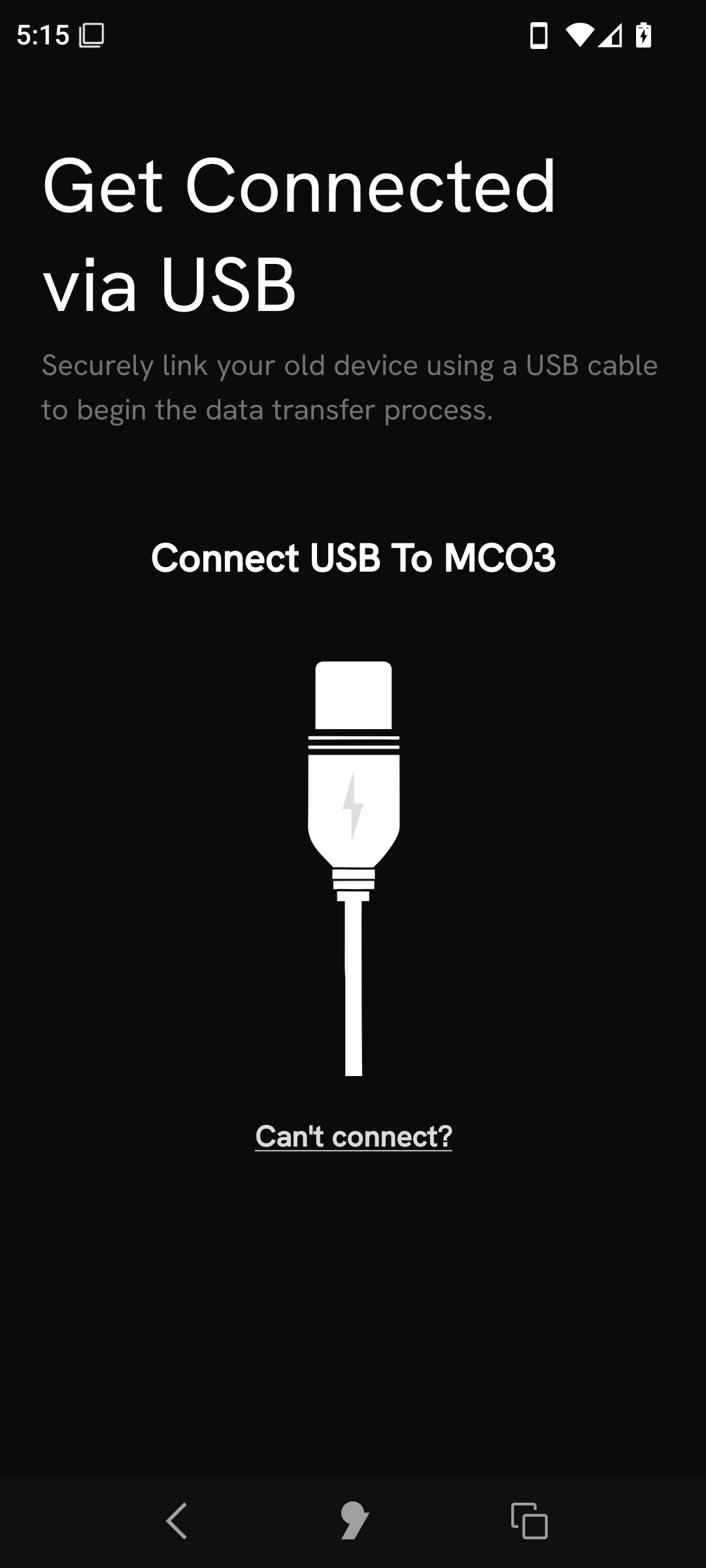
- Use a USB-C cable to connect your old device to the MC03
- Confirm the connection when prompted
4. Start the transfer
Once connected:
- The transfer will begin automatically
- Your selected data (contacts, photos, supported apps) will be copied to the MC03
Important:
Do not disconnect the cable during the transfer process.
5. Complete the setup
Once the transfer is finished:
- You can safely disconnect the devices
- Continue with the MC03 setup
Important notes
- If your previous device was already using AphyOS, compatible apps (such as Proton or Threema) will be transferred
- Apps installed via Google Play will not be transferred
- Always ensure your devices are sufficiently charged before starting